

Published by Wish Computers
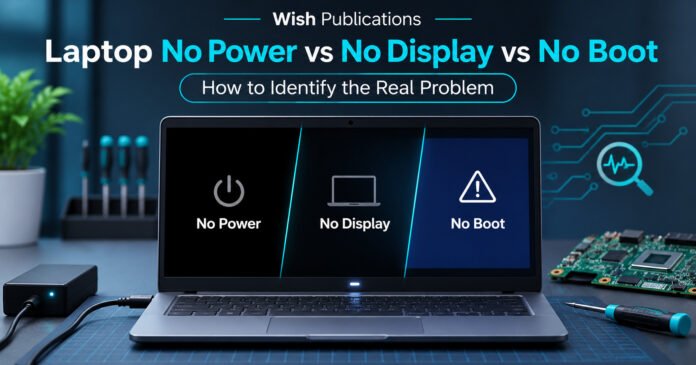
A laptop that refuses to start does not always have a motherboard problem. Sometimes the charger has failed. Sometimes the computer is running but the display remains black. In other situations, the hardware starts correctly but Windows never loads.
These situations may look similar to someone pressing the power button, but they require different diagnostic approaches.
Before replacing a motherboard, reinstalling Windows, or buying a new battery, it is important to identify which stage of the startup process is actually failing.
This guide explains the difference between four common fault categories and the practical checks that can help narrow down the cause.
Understanding the Four Startup Problems
Laptop startup failures can be divided into four useful diagnostic categories.
| Problem | What happens | Diagnostic direction |
|---|---|---|
| No power | No obvious response when pressing the power button | Power source, adapter, charging input and power circuitry |
| No POST | The laptop receives power but fails its startup hardware checks | Memory, firmware and hardware initialization |
| No display | The computer shows signs of operation but no visible image | Screen, display path or incomplete hardware startup |
| No boot | Firmware starts, but the operating system does not load correctly | Storage, boot configuration and operating system |
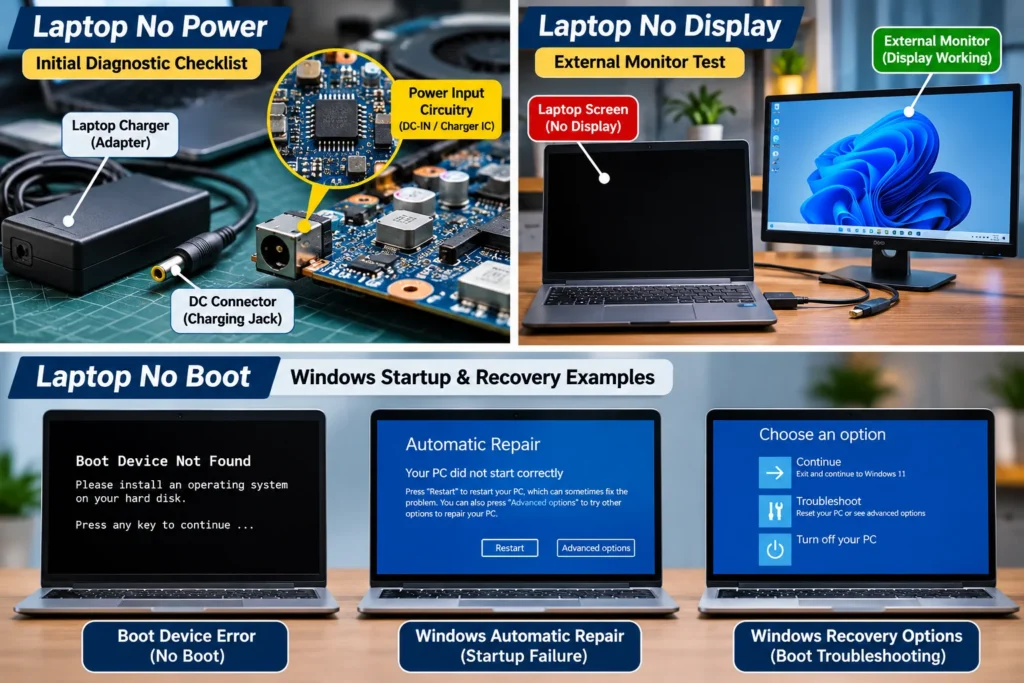
These are diagnostic descriptions, not final fault diagnoses. A faulty component can produce more than one symptom, and the outward signs vary by laptop model.
Table of Contents
1. Laptop Has No Power
A no-power condition occurs when pressing the power button produces no normal signs of startup.
The screen remains black, the fan does not run, and the laptop may show no power indicator.
However, a missing indicator alone does not prove that the motherboard is dead. Some laptop designs provide limited visible feedback, and a charging indicator may behave differently from the main power indicator.
What should you check first?
Start with the external power source.
Confirm that the wall outlet works. Check the charger cable and connector for visible damage. Use a manufacturer-approved or correctly specified compatible charger, and allow sufficient time for a deeply discharged battery to recharge.
For USB-C charging laptops, verify that the charger and cable support the power requirements of the specific model. A USB-C connector does not automatically mean every USB-C charger can power that laptop.
Disconnect external peripherals and docking stations, then follow the manufacturer’s documented power-reset procedure if one is available.
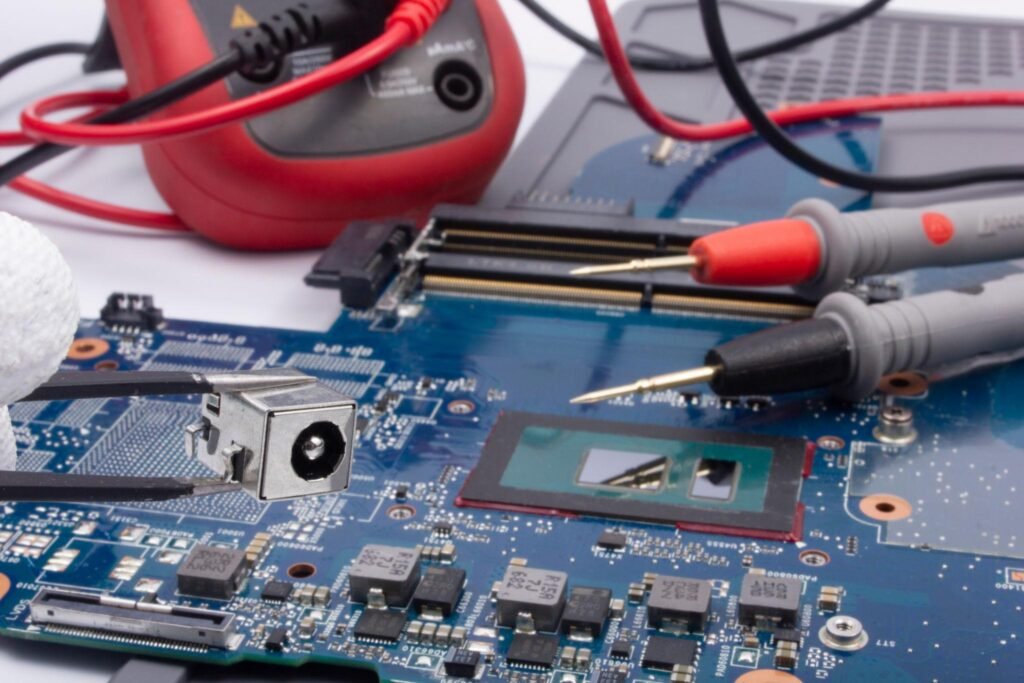
Avoid opening sealed battery compartments or attempting internal electrical work unless you have the required training and service information.
When could the motherboard be responsible?
If a known-good power source produces no normal startup response, further diagnosis may involve the DC-input path, input protection circuits, charger controller, power-management circuitry, embedded controller, or standby voltage rails.
These are technician-level investigations involving model-specific circuit knowledge and appropriate test equipment.
A motherboard should not be condemned simply because the laptop will not power on.
2. Laptop Powers On but Fails POST
POST means Power-On Self-Test.
During the early startup process, the system firmware initializes and checks important hardware before handing control to the boot process.
When this stage fails, a laptop may illuminate its power indicator, spin its fan, produce a diagnostic beep, display an error message, or flash an LED in a particular pattern.
On some machines, the screen may remain completely black.
What might cause a POST failure?
Possible causes include memory initialization problems, firmware issues, or faults affecting processor and motherboard initialization.
The important step is to record the actual symptoms instead of assuming a particular component has failed.
Many laptop manufacturers provide diagnostic LED or beep-code information in their service documentation. Those indicators can narrow the possibilities considerably.
For example, an LED flashing pattern should be interpreted using documentation for the exact laptop model, not a generic chart from an unrelated computer.
If the laptop is under warranty, check the manufacturer’s support procedure before attempting internal repairs.
3. Laptop Runs but Shows No Display
A blank screen often leads users to conclude that the laptop is dead.
That conclusion can be premature.
The machine may be receiving power, operating its fans, and responding to keyboard input even though the built-in display is not showing an image.
Possible causes include a display brightness or configuration issue, a faulty LCD panel, display-cable damage, a backlight problem, firmware or graphics initialization problems, or another fault preventing video output.
The external monitor test
If the laptop supports an external display, connect a known-working monitor using a suitable video connection.
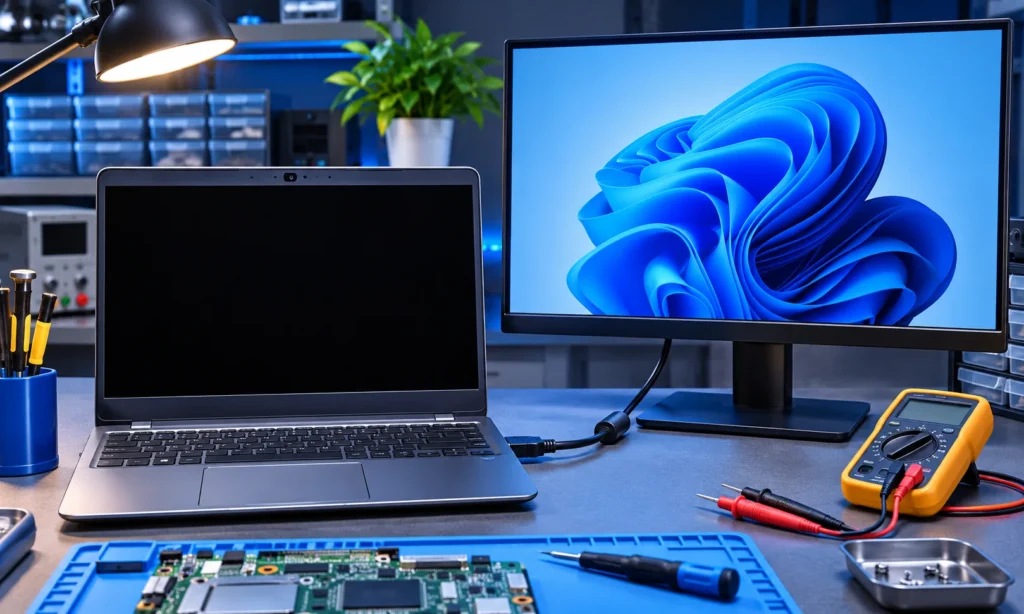
Check that the external monitor is powered on and set to the correct input source. Some laptops also require a display-switching keyboard command.
If the external monitor displays an image while the internal screen remains blank, that provides useful evidence pointing toward the internal display system.
However, a working external display does not identify the exact failed component. The issue could still involve the LCD, cable, connector, backlight circuitry, or other display-path components.
Likewise, a blank external monitor does not prove that the GPU or motherboard is defective. The laptop may not have completed startup, the output may not be enabled, or the external connection may not be functioning.
The test is one piece of evidence, not a complete diagnosis.
4. Laptop Starts but Windows Does Not Boot
A no-boot condition occurs when a computer reaches the firmware or early startup stage but cannot successfully load its operating system.
You might see the manufacturer’s logo, a boot-device error, a Windows recovery screen, or a repeated restart.
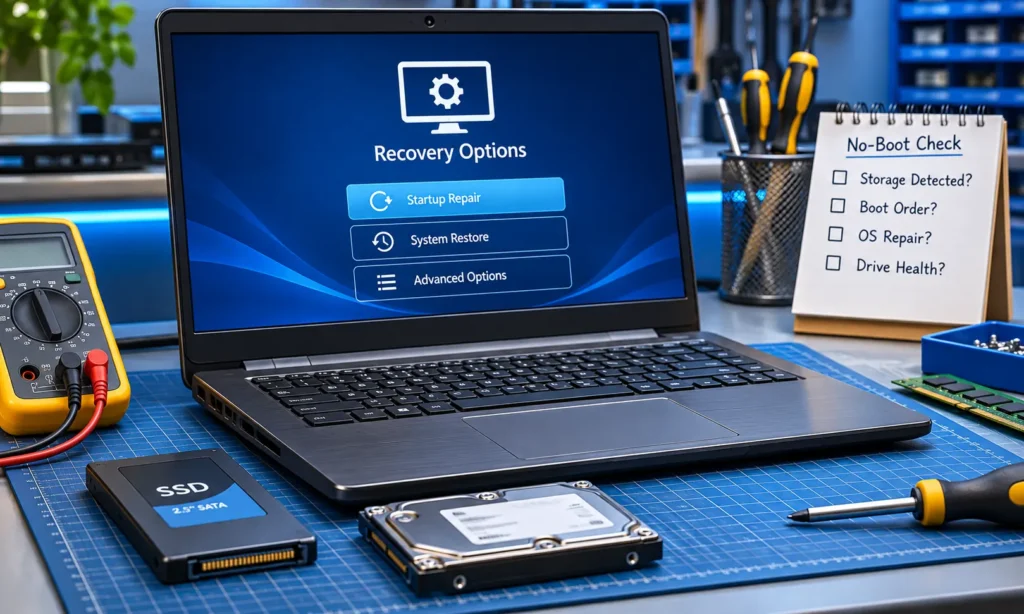
Possible causes include storage problems, incorrect boot configuration, damaged operating-system files, or other software and hardware issues.
This is different from a completely dead laptop.
What should you do?
Begin by recording the exact error message. Check whether the storage device is detected in the system firmware, if the manufacturer’s interface makes that information available.
If the problem started after a software update or configuration change, official recovery options may help.
Do not immediately format the drive, reinstall Windows, reset the BIOS, or delete partitions. These actions may complicate recovery or cause data loss.
If important files are stored on the device, protecting those files should be part of the repair decision.
Why Correct Diagnosis Saves Time and Money
Imagine two laptops arriving for repair.
The first produces no power indicator or other response, even when connected to a verified compatible charger.
The second illuminates its keyboard, runs its fan, and displays Windows recovery information.
Both owners might describe the problem as my laptop won’t turn on.
But the second machine has progressed much further into the startup sequence.
A technician who begins by replacing components on both motherboards would be ignoring important evidence.
A more effective approach is to identify the last stage that worked correctly, then investigate the next stage that failed.
This is the fundamental value of structured fault isolation: observe, classify, verify, and only then investigate components.
When Should You Seek Professional Repair?
Professional diagnosis is appropriate when the laptop continues to show no response with a verified power source, displays persistent hardware diagnostic codes, suffers liquid damage, smells of burning, shows signs of battery swelling, or requires internal circuit measurements.
A swollen battery, damaged charger, overheating connector, or recently liquid-exposed motherboard should not be repeatedly powered on in an attempt to make it work.
Qualified technicians can use model-specific service information and electrical diagnostic equipment to determine whether a fault is repairable.
Frequently Asked Questions
Can a laptop have power but no display?
Yes. A laptop may receive power and show signs of activity while its built-in screen remains blank. The cause could involve the display system or an earlier startup failure.
Does a black screen mean the motherboard is damaged?
No. A black screen can result from multiple hardware or software conditions. Further testing is required before reaching that conclusion.
Can a faulty battery stop a laptop from turning on?
Yes, battery and power-management problems can affect startup. Whether a particular laptop can operate directly from its charger depends on its design and condition.
Should I replace the motherboard if my laptop won’t start?
Not without diagnosis. A failed charger, firmware problem, display issue, or other fault may produce similar symptoms.
Further Learning: Laptop No Power Repair Guide
For computer hardware students and technicians who want to study motherboard-level diagnosis, Laptop No Power Repair Guide by Shafeek Ahmad, published by Wish Publications, explores power-input circuitry, voltage rails, diagnostic measurements, power-sequence analysis, and other advanced troubleshooting topics.
Explore Laptop No Power Repair Guide on Google Play Books
The book is intended for readers studying technical diagnostics rather than users seeking only basic troubleshooting steps.
Technical References
This article draws on manufacturer troubleshooting principles described in:
- Dell — No Power, No POST, No Boot or No Video
- Lenovo — Troubleshooting No Power Issues
- Lenovo — Troubleshooting Display or Monitor Issues
Manufacturer procedures vary by model. Always consult the appropriate service documentation before attempting device-specific repairs.
About Wish Publications
Wish Publications is an independent educational publishing business owned by Mr. Shafeek Ahmad, who also owns Wish Computers, a separate computer and IT services business based in Chhatarpur, Madhya Pradesh, India.
Our publications focus on practical learning, technical understanding, and accessible educational resources.
Website: https://wishpublications.com